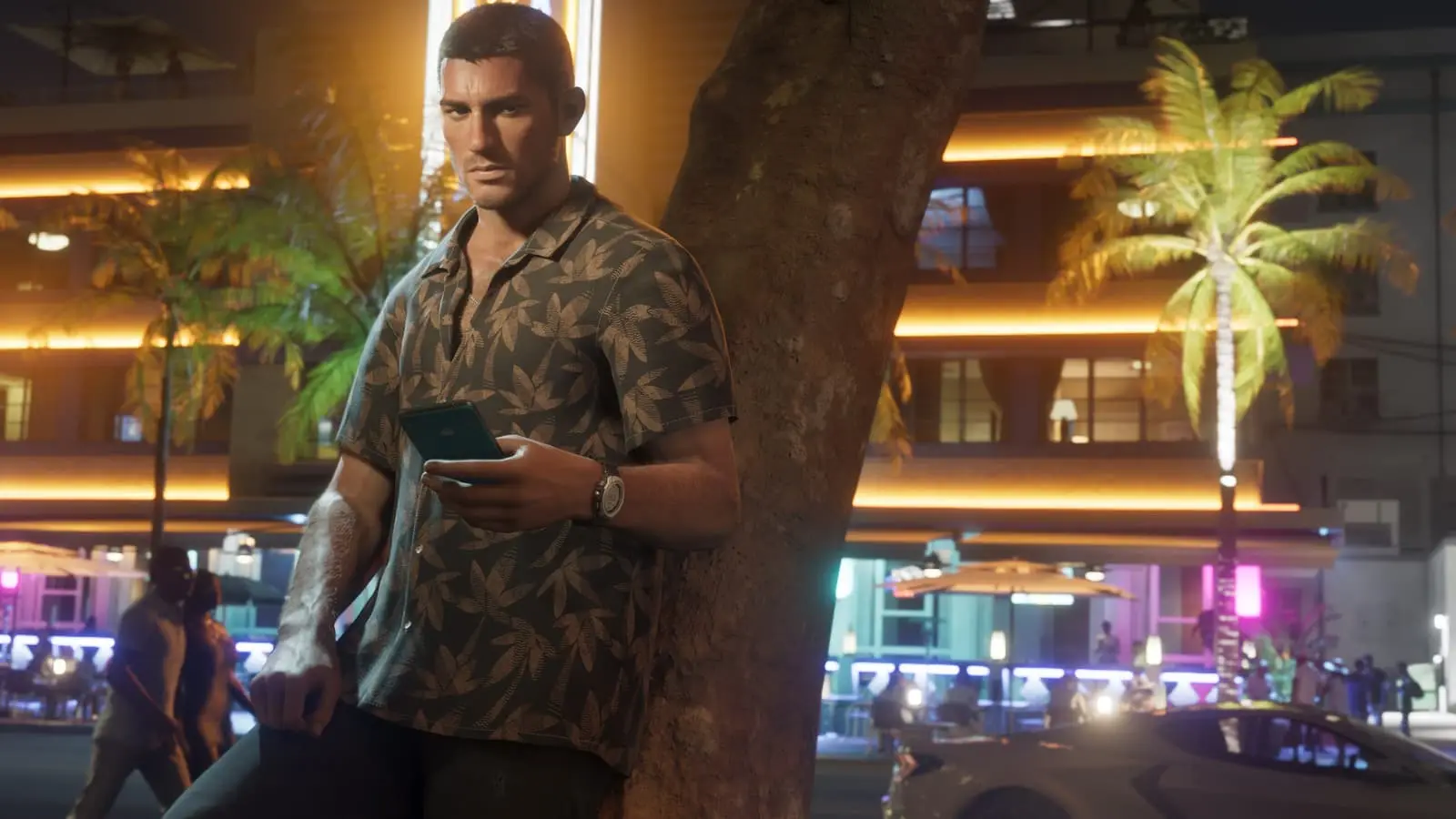
 Изображение: Rockstar Games
How do you use Photo Mode in GTA 6?
Короткий ответ
Open the Options menu in-game and scroll down to Photo Studio, the game's name for Photo Mode. It sits above Settings, and a button shortcut also opens it. Tabs cover camera, effects, lighting, vehicle and overlays.
По сообщениям: По данным журналистов или обозревателей, которые играли в игру и указаны по имени. Это не официальное заявлениеОбновлено: 19 ноября 2026 г.1 источник
From Eurogamer’s guide, written by reviewers who played the game; not checked by this site in the game.
Пошагово
- 1Open OptionsWhile playing, open the Options menu (not the main menu that holds progress and collectibles).
- 2Choose Photo StudioScroll down to Photo Studio, which sits above Settings.
- 3Frame the shotMove the camera and adjust the tabs, then take the photo before you leave.
На этой странице · разделов: 4
What is Photo Mode called?
Photo Studio. It takes screenshots of whatever you’re doing in Leonida.
How do you open it?
Open the Options menu in-game and scroll to Photo Studio, above Settings. A button shortcut also opens it, but Eurogamer doesn’t name the button. How you share a photo depends on your platform.
What can you change?
| Tab | Settings |
|---|---|
| Camera | Speed, grid, roll, aspect ratio, field of view, depth of field, aperture, focus distance, focus guide, show or hide your character |
| Effects | Exposure, contrast, highlights, shadows, saturation, sharpness, grain, temperature, tint, gamma, lens flare, bloom, chromatic aberration |
| Lighting | Up to five light layers |
| Vehicle | Show or hide the vehicle; headlights, brake lights, turn signals, fog lights |
| Overlays | Gameplay effects, 17 filters with adjustable intensity, vignette, color isolation |
Take the photo before you finish in the Photo Studio.
Where can you read more?
Источники
- Eurogamer
How to use Photo Mode in GTA 6
Читайте также
Нашли ошибку или устаревшие данные? Сообщите нам · Как создаются ответы